



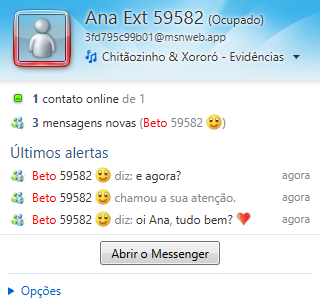
What it does (5)
 Keeps you online with the site closed, and the buddy changes color with your status: Available, Busy, Away or Offline.
 Alerts you in the corner of the screen when a message arrives, when someone nudges you or when a contact signs in, with Messenger's sounds. The number of new messages shows on the icon.
 Changes your status and personal message right in the small window, without opening the site.
 What I'm listening to: if you turn it on, it shows your contacts the song playing on YouTube Music, Spotify, Deezer, SoundCloud or YouTube, here in the browser.
- Opens Messenger with one click when you want to chat. The conversation still happens on the site.
Install (3 steps)
The extension is not in the browsers' stores yet: for now it is installed with the file from here, in "developer mode". It takes about two minutes. Below, we open the steps for the browser you are using.
You are on a phone. Extensions only work in the computer's browser. On the phone, use Messenger on the site or install it as an app.
Chrome, Edge, Brave or Opera
-
1 Download the extension and extract the file: right-click it → Extract All... → Extract. A folder named
msnweb-extensao-chromewill appear.Download the extension (Chrome, Edge, Brave, Opera) .zip · 630 KB
-
2 Open your browser's extensions page by copying the address into the bar at the top, and turn on Developer mode:
- Chrome:
chrome://extensions(the switch is at the top right) - Edge:
edge://extensions(the switch is in the left column) - Brave:
brave://extensions - Opera:
opera://extensions
- Chrome:
-
3 Click Load unpacked and choose the
msnweb-extensao-chromefolder you extracted. Done: the Messenger buddy shows up next to the address bar. If it is hidden, click the puzzle piece and the pin to keep it in view.
Don't delete the folder afterwards: the browser runs the extension from it. Keep it in Documents, for example.
Firefox
-
1 Download the extension for Firefox and extract the file (right-click → Extract All...).
Download the extension (Firefox) .zip · 630 KB
-
2 Open
about:debugging#/runtime/this-firefoxin the address bar and click Load Temporary Add-on.... -
3 Choose the
manifest.jsonfile inside the extracted folder.
In Firefox, an extension installed this way is removed when Firefox closes (that's Firefox's rule for extensions outside its store). When it is in the Firefox store, we'll say so here.
After installing: connect it to your account
For now the extension is in Portuguese; below are the button names as they appear in it.
1 Click the Messenger buddy and then Conectar ao Messenger (Connect to Messenger).
2 A msnweb.app page opens showing the account that will be connected. Check it and click Conectar (Connect) (if Messenger isn't open in this browser, sign in first).
3 Pronto! (Done!) shows up and the buddy turns green. You can close the site: you stay online and get the alerts.
What the extension can see (4)
- Only msnweb.app. It doesn't read the other pages you open or your history.
- Music only if you turn it on in "What I'm listening to". The browser asks first, and it only reads the name of the track that the music site itself reports (it doesn't listen to the sound).
- Its own access, which you can cut off: the extension doesn't get your password or your site sign-in. It gets an access of its own, which goes away when you click Desconectar a extensão (Disconnect the extension), or in Connected places in Messenger.
- The conversation stays encrypted. The extension only shows the summary (who wrote and the beginning of the message, if you keep the preview on); to chat, it opens the site.
Questions (5)
Do I have to pay?
No. It's free, like the site.
Why "developer mode"? Is it safe?
It's just the way browsers let you install an extension that isn't in their store yet. The file comes only from msnweb.app and the extension only talks to msnweb.app. Once it is in the stores, installing will take one click.
Chrome said "Disable developer mode extensions". Now what?
It's a notice Chrome shows for every extension installed outside its store. Click the "x" to close it and the extension keeps working.
Does it work on the phone?
No: phone browsers don't accept extensions. On the phone, use Messenger on the site or install the app.
How do I remove it?
In the small window, click your status → Desconectar a extensão. Then, on the browser's extensions page, click Remove and delete the folder.
Would you rather have a real program, next to the clock? Download Messenger for the computer. Or use it right now in the browser: Sign in on the site.